GitHub Actions
Connect GitHub Actions to BuildButler via the CLI reporter or an org-level webhook.
Send build results, job stages, and test data from GitHub Actions to BuildButler using the @buildbutler/ci CLI or a zero-config org-level webhook.
Option 1: Org-level webhook
Configure one webhook at the GitHub organization level and every repository's workflow runs are automatically reported to BuildButler — no per-repo .github/workflows changes needed.
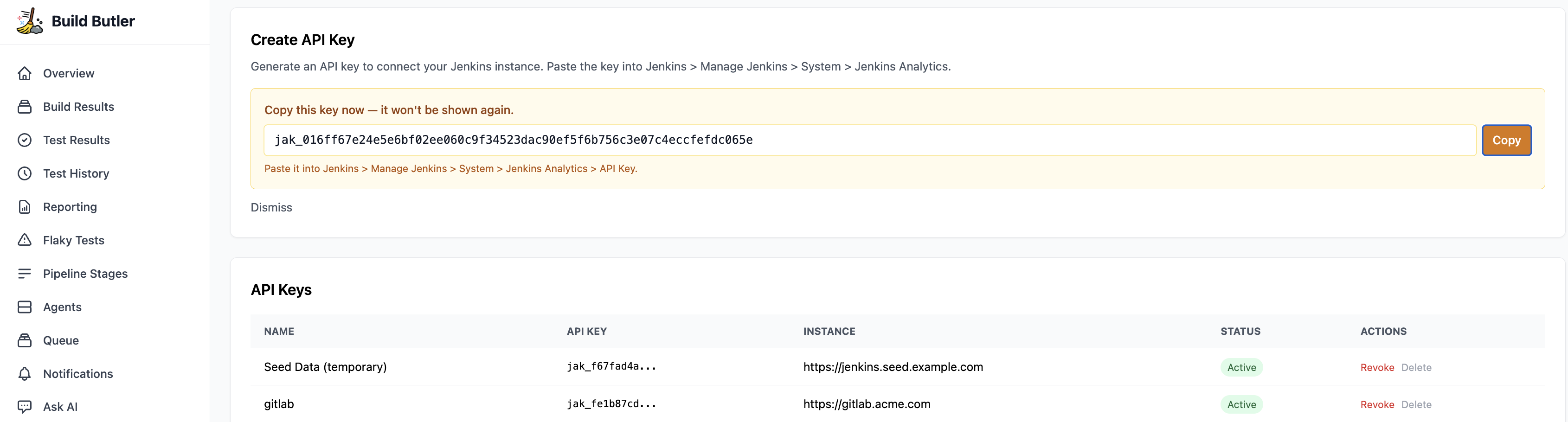
1. Generate an API key
- In the BuildButler web app, go to Settings → Add API key. Copy it — you'll need it in the next step.
2. Add the webhook
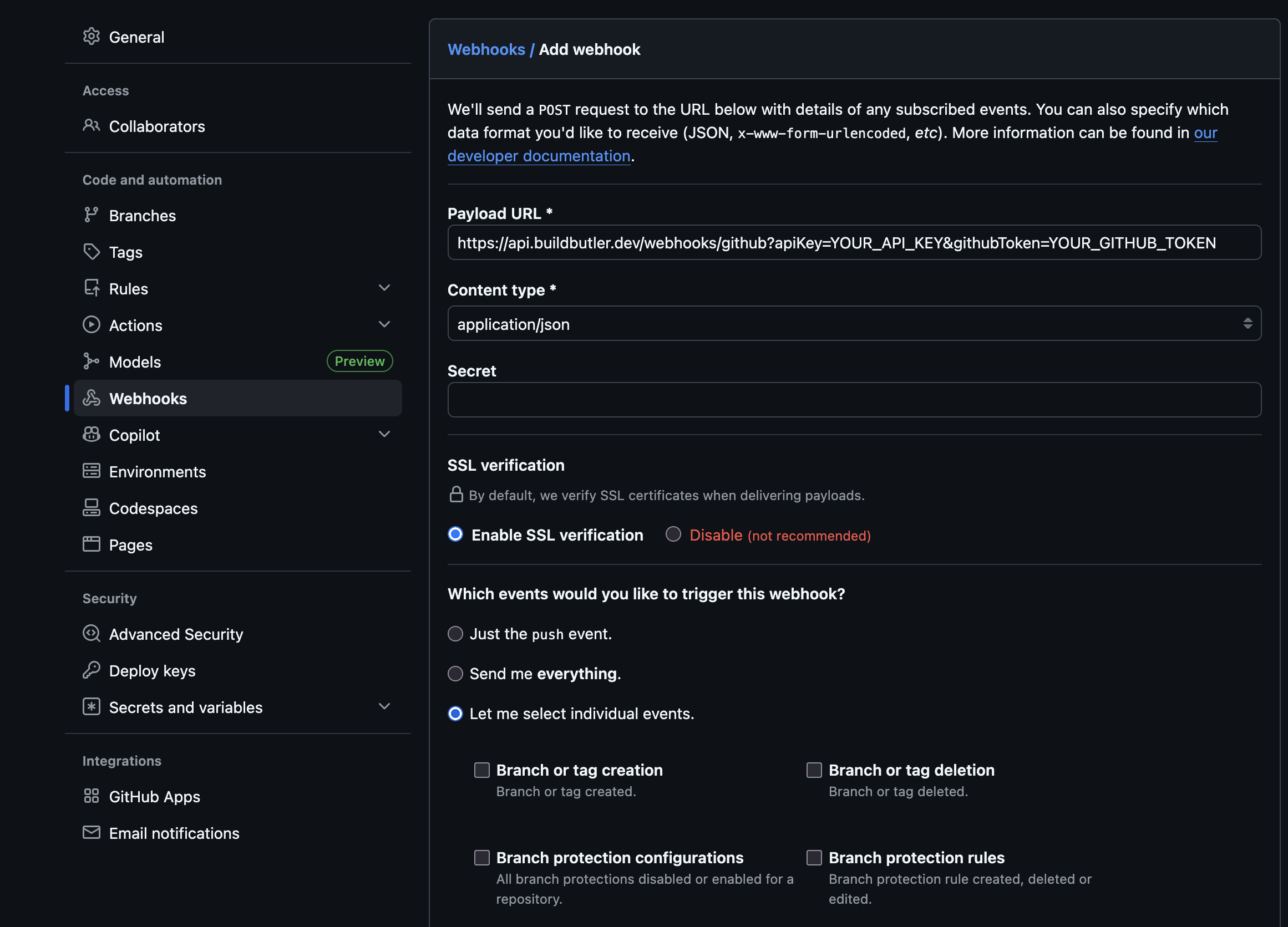
- Go to your GitHub organization → Settings → Webhooks → Add webhook
- Fill in the form:
| Field | Value |
|---|---|
| Payload URL | https://api.buildbutler.dev/webhooks/github?apiKey=YOUR_API_KEY&githubToken=YOUR_GITHUB_TOKEN |
| Self-hosted URL | http://your-server:3000/webhooks/github?apiKey=YOUR_API_KEY&githubToken=YOUR_GITHUB_TOKEN |
| Content type | application/json |
| Secret | Leave blank (the API key in the URL is the auth mechanism) |
| Which events | Select Let me select individual events → tick Workflow runs only |
- Click Add webhook
GitHub will immediately send a ping event — BuildButler will respond with 200 OK.
3. How it works
- BuildButler only processes
workflow_runevents withaction: completed— in-progress events are acknowledged and ignored - Each completed workflow run is stored as a build; concurrent runs of the same workflow are deduped by run ID
JUnit Results
To collect JUnit results, make sure to upload JUnit results as attachments. BuildButler looks for attachments named junit* or test-result*, extracts the JUnit XML file, and stores the parsed results in the database.
Option 2: CLI Workflow Reporter
If webhooks are not available, add a reporter step in your workflow that runs after all jobs complete.
1. Generate an API key
- In the BuildButler web app, go to Settings → Add API key. Copy it — you'll need it in the next step.
2. Add the reporter step
Key settings:
if: always()— runs even when earlier steps fail so BuildButler always receives dataGITHUB_JOB_STATUS— passes the final job result; required to distinguish pass from failTEST_RESULTS_GLOB— glob path to JUnit XML test results; remove if you have noneGITHUB_TOKEN— injected automatically by GitHub Actions and used by the reporter to fetch per-job stage details — no extra configuration needed
Data mapping
| GitHub Actions | BuildButler |
|---|---|
| Organization / Repository | Server |
| Workflow | Job |
| Workflow run | Build |
| Job | Pipeline stage |
| Runner | Agent |
Troubleshooting
| Symptom | Likely cause | Fix |
|---|---|---|
| Builds not appearing | Wrong API key | Verify BUILDBUTLER_API_KEY is set correctly |
| All builds show as success | Missing GITHUB_JOB_STATUS | Add GITHUB_JOB_STATUS: ${{ job.status }} to the step env |
Webhook returning 401 | Invalid API key in URL | Re-copy the API key from BuildButler Settings |
Webhook returning skipped | Wrong event type selected | Ensure only Workflow runs is ticked in webhook settings |