Jenkins Local
Self-contained Jenkins plugin that stores CI data directly in your own PostgreSQL database and displays it within the Jenkins UI.
The Jenkins Local plugin is a fully self-contained solution. It stores all CI data in your own PostgreSQL database and surfaces analytics directly inside the Jenkins UI — no external services, no internet required. Think of Jenkins local plugin as a 'super plugin'. It is a plugin with a host of capabilities like slack, email, test case management integrations, jira, etc.
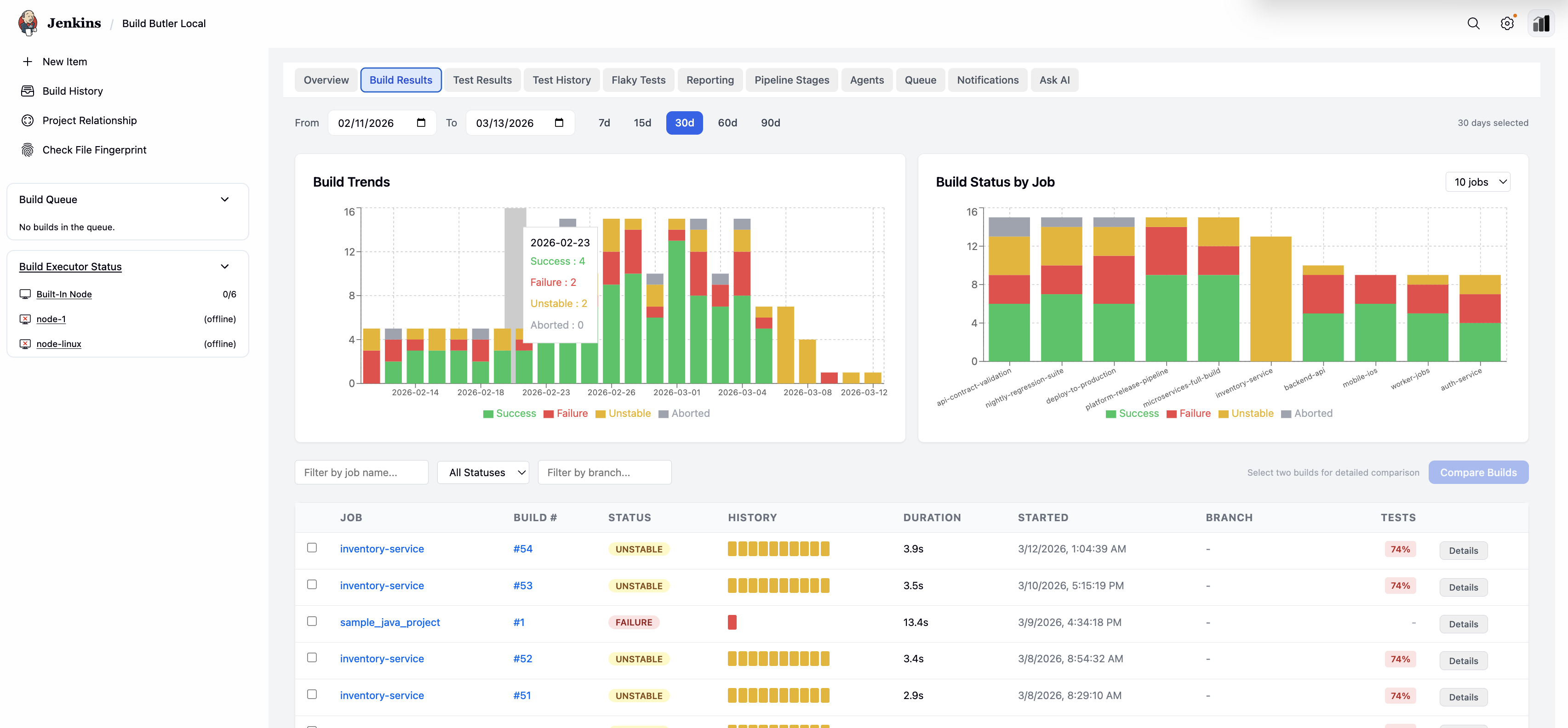
How it works
Data never leaves your infrastructure. The plugin writes directly to Postgres and reads from it to render the BuildButler dashboard panels inside Jenkins.
Prerequisites
- Jenkins 2.387.3 or later
- A PostgreSQL 14+ database accessible from Jenkins
- Java 11+
Installation
Step 1 — Install the plugin
- Download the
buildbutler-local.hpiplugin from the Downloads page. - In Jenkins, go to Manage Jenkins → Plugins → Advanced.
- Under Deploy Plugin, upload the
.hpifile and click Deploy. - Restart Jenkins when prompted.
Step 2 — Activate your license
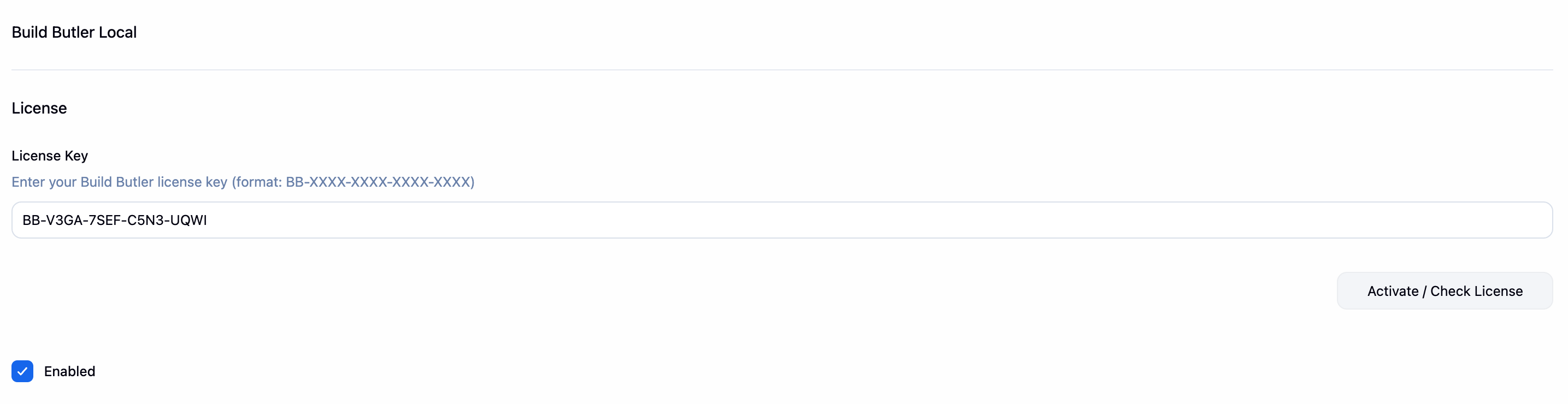
- Go to Manage Jenkins → Build Butler Local
- Under License, paste your license key from your welcome email into the License Key field (format:
BB-XXXX-XXXX-XXXX-XXXX) - Click Activate / Check License
- Tick Enabled and save
Configuration
After installation, go to Manage Jenkins → BuildButler Local to configure the plugin.
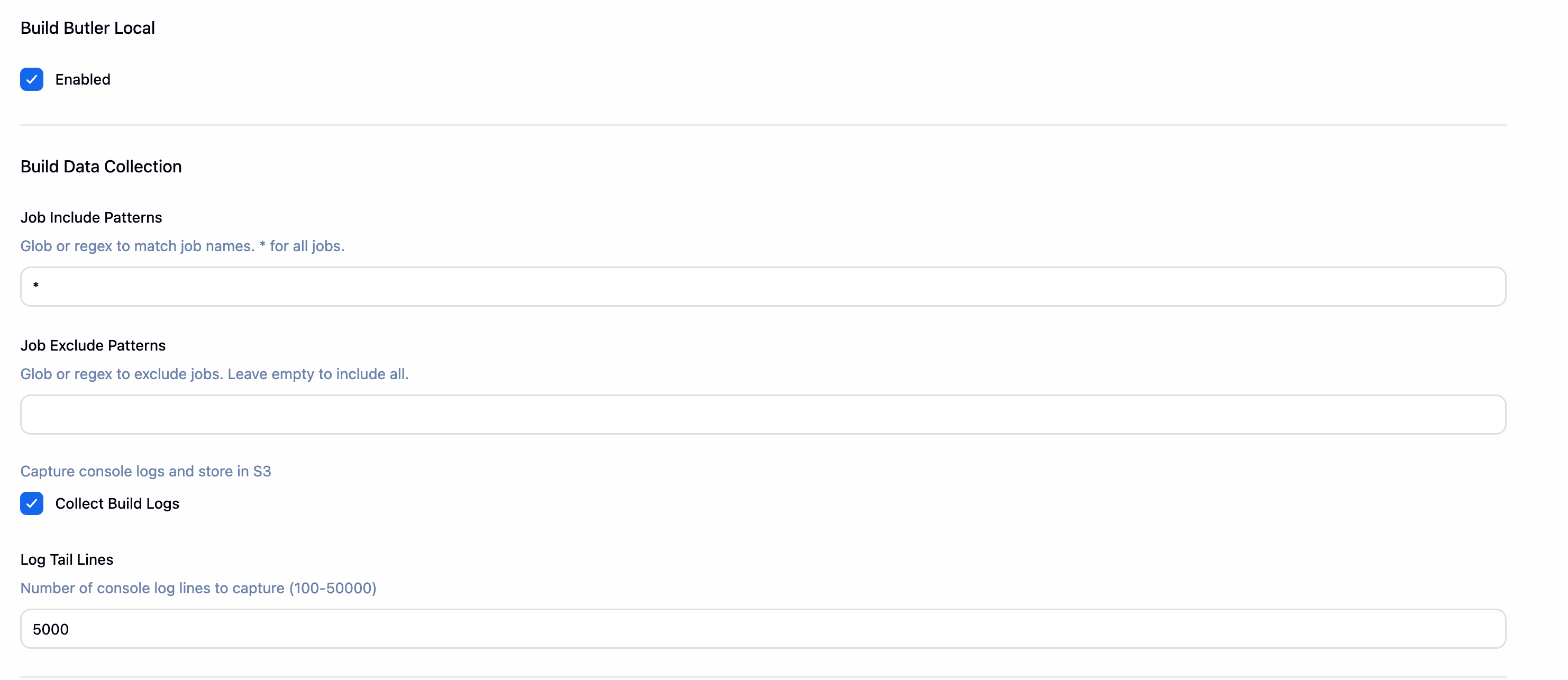
Build Data Collection
Control which jobs are monitored and how build logs are collected.
Database Connection
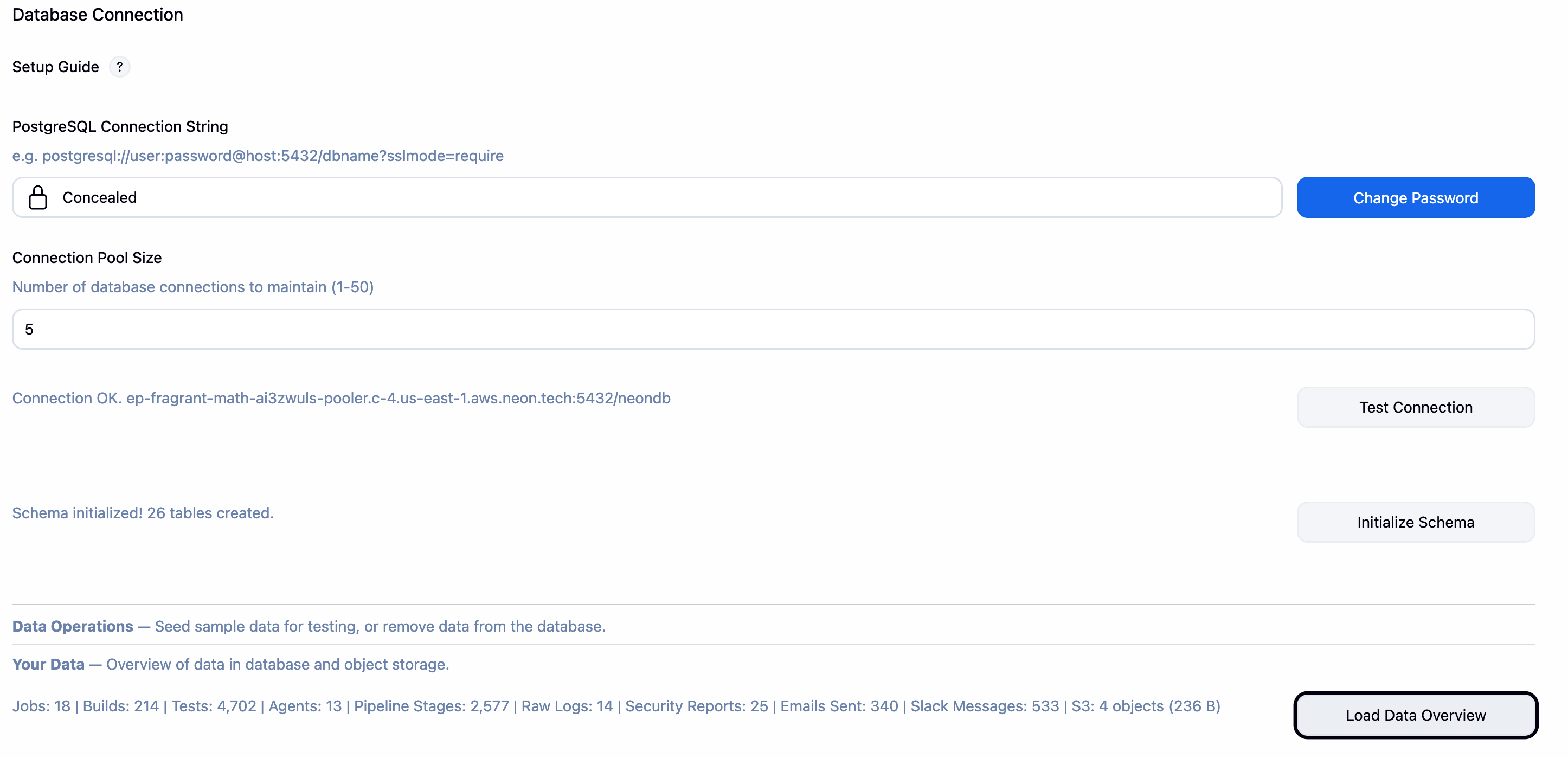
Enter your PostgreSQL connection details. Click Test Connection to verify, then Initialize Schema to create the required tables on first setup.
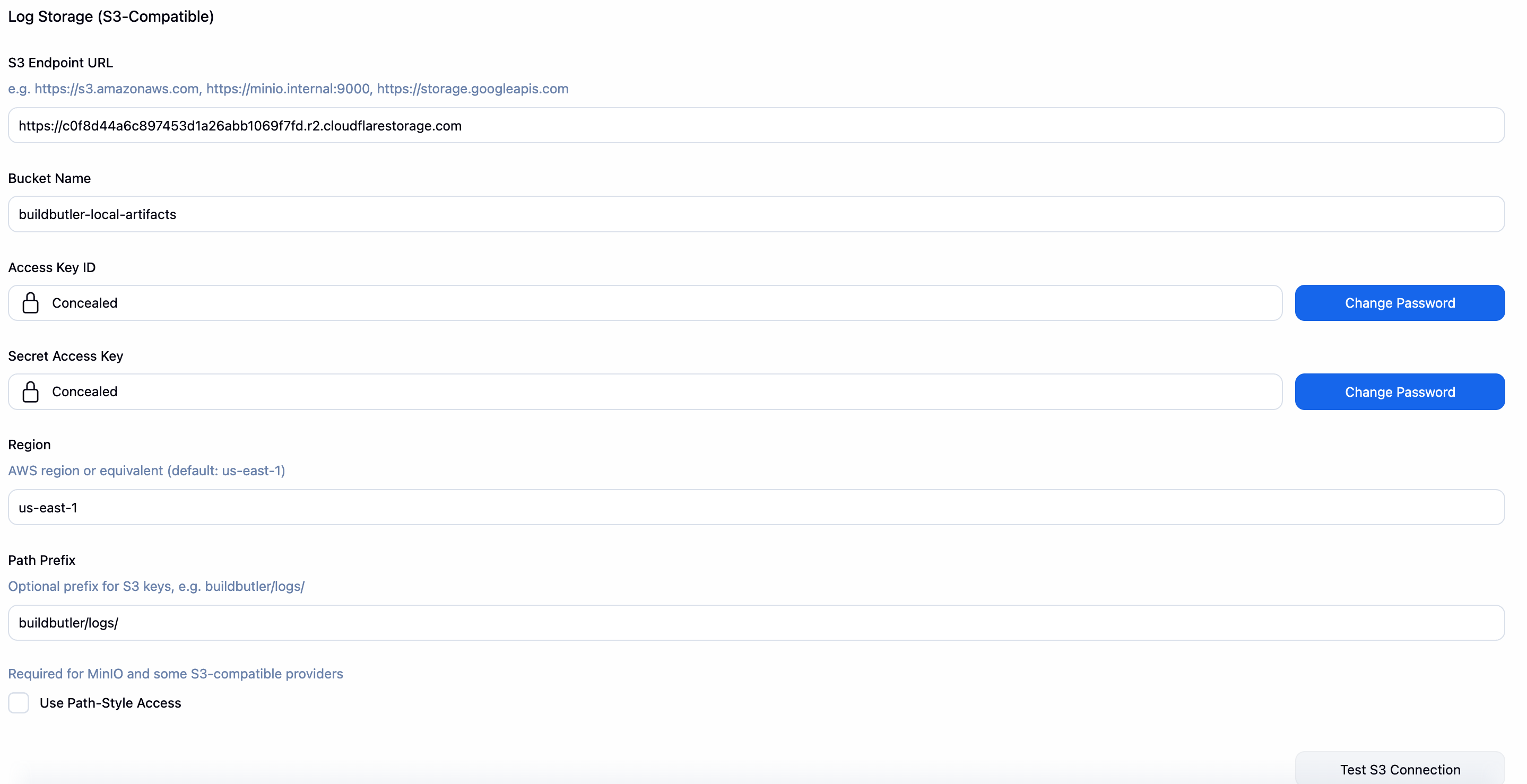
Log Storage (S3-Compatible)
Optionally configure an S3-compatible object store (AWS S3, MinIO, etc.) to store raw build console logs.
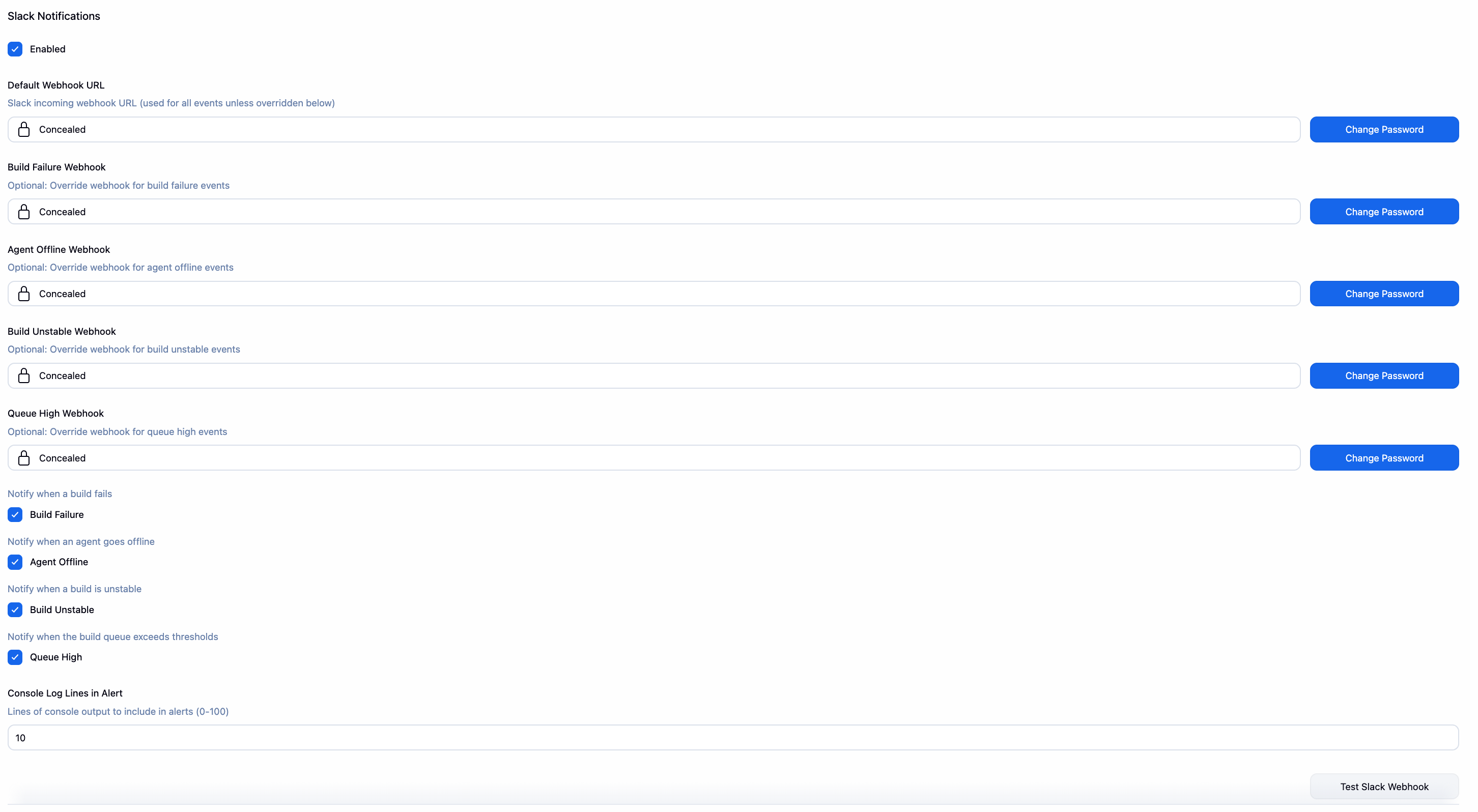
Slack Notifications
Configure a default Slack webhook and per-event overrides. Toggle which build events trigger notifications and how many console log lines to include.
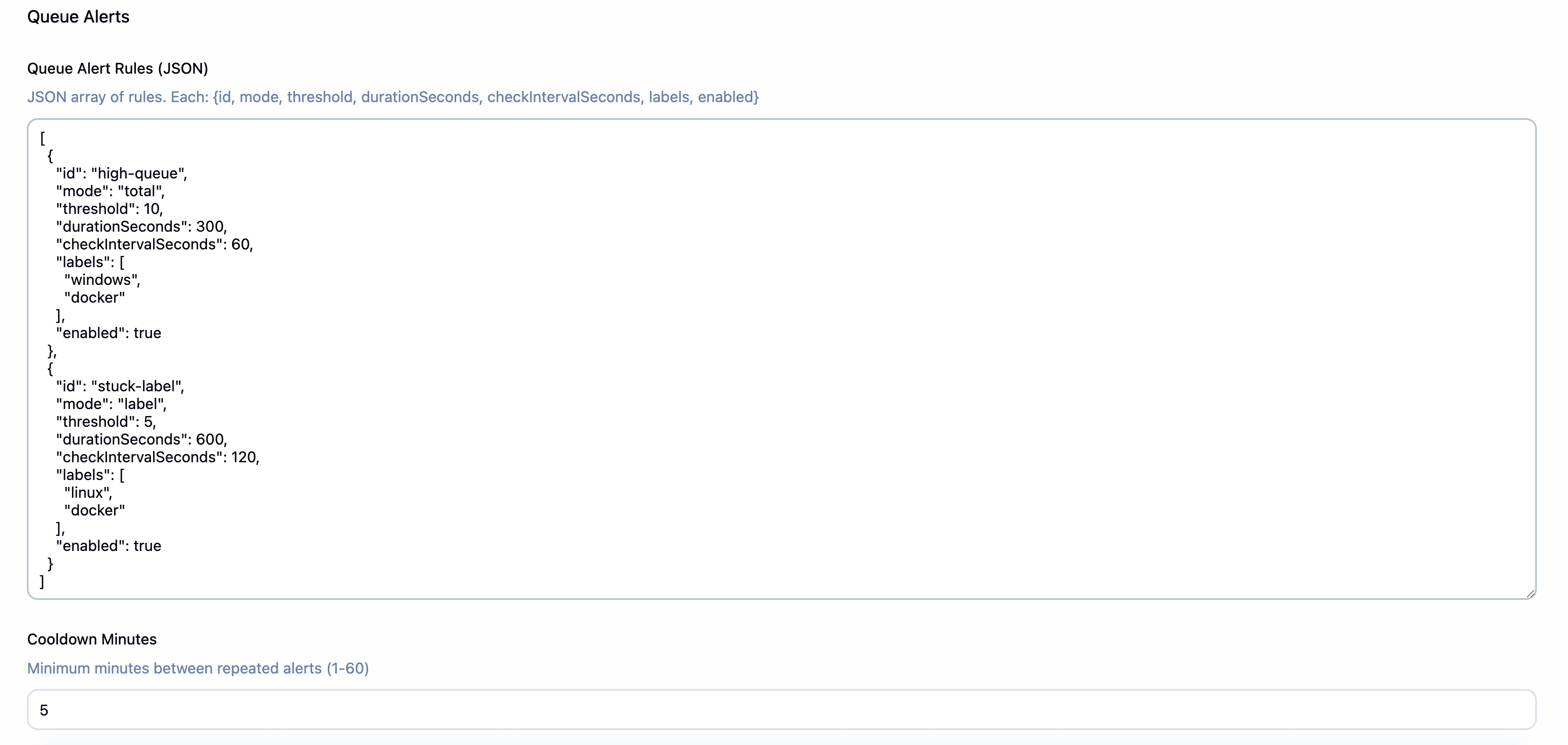
Queue Alerts
Define rules that fire when the build queue exceeds a threshold for a sustained duration. Rules are expressed as a JSON array and support total-queue and per-label modes.
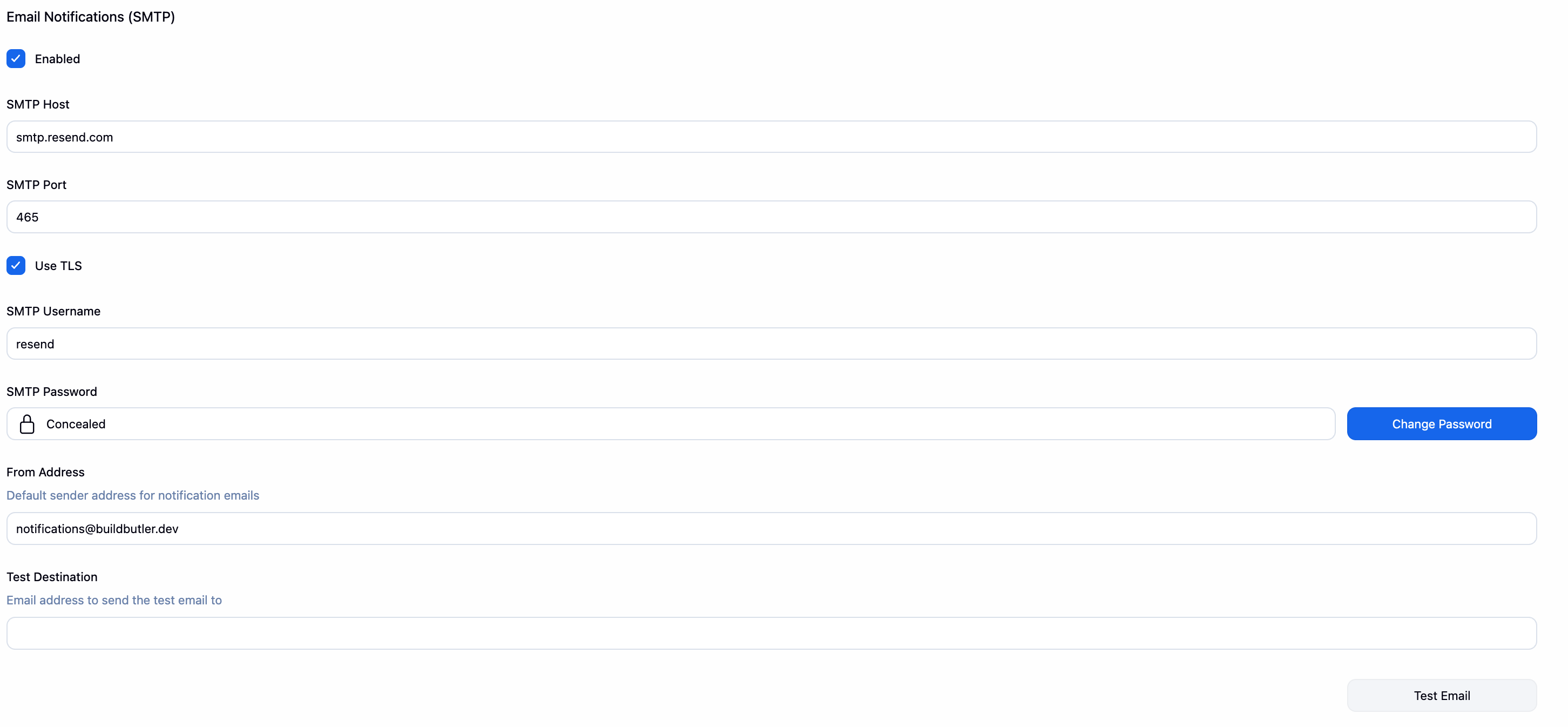
Email Notifications (SMTP)
Configure your SMTP server to send email alerts on build events.
Email rules are set outside this section in the main app view. This allows non-admin users to create email rules for their projects and is designed intentionally.
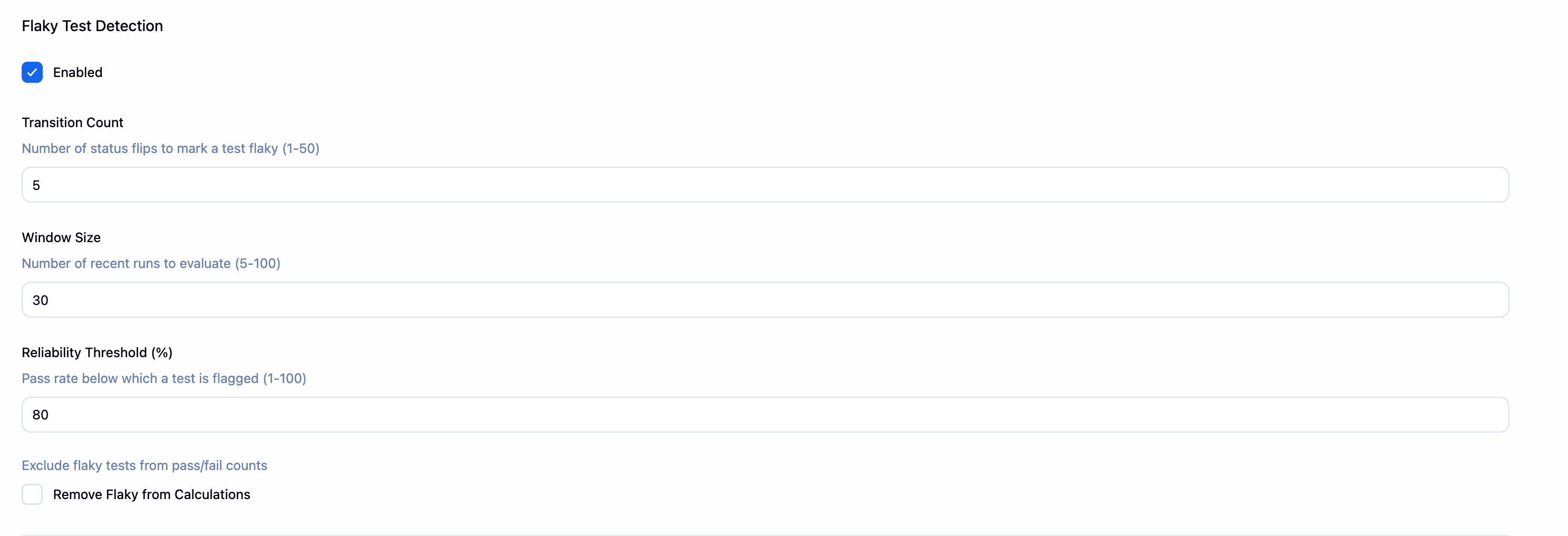
Flaky Test Detection
Configure how BuildButler identifies flaky tests — set the number of status transitions, the evaluation window, and the reliability threshold below which a test is flagged.
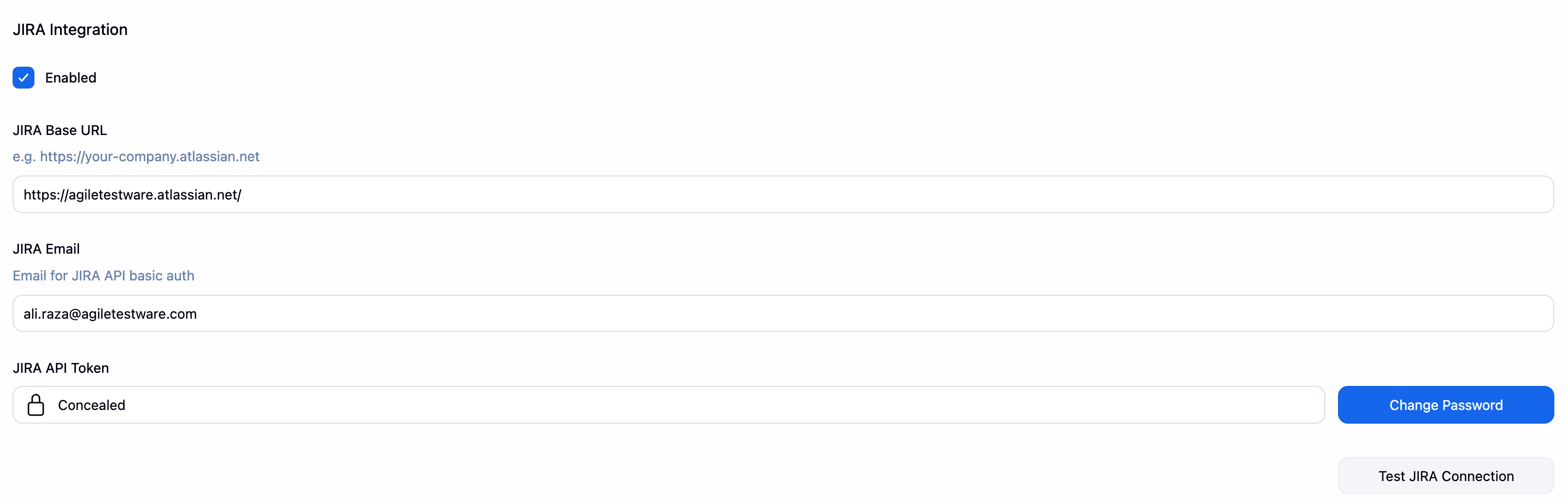
JIRA Integration
Connect BuildButler to your Jira instance to link build failures to tickets directly from the dashboard.
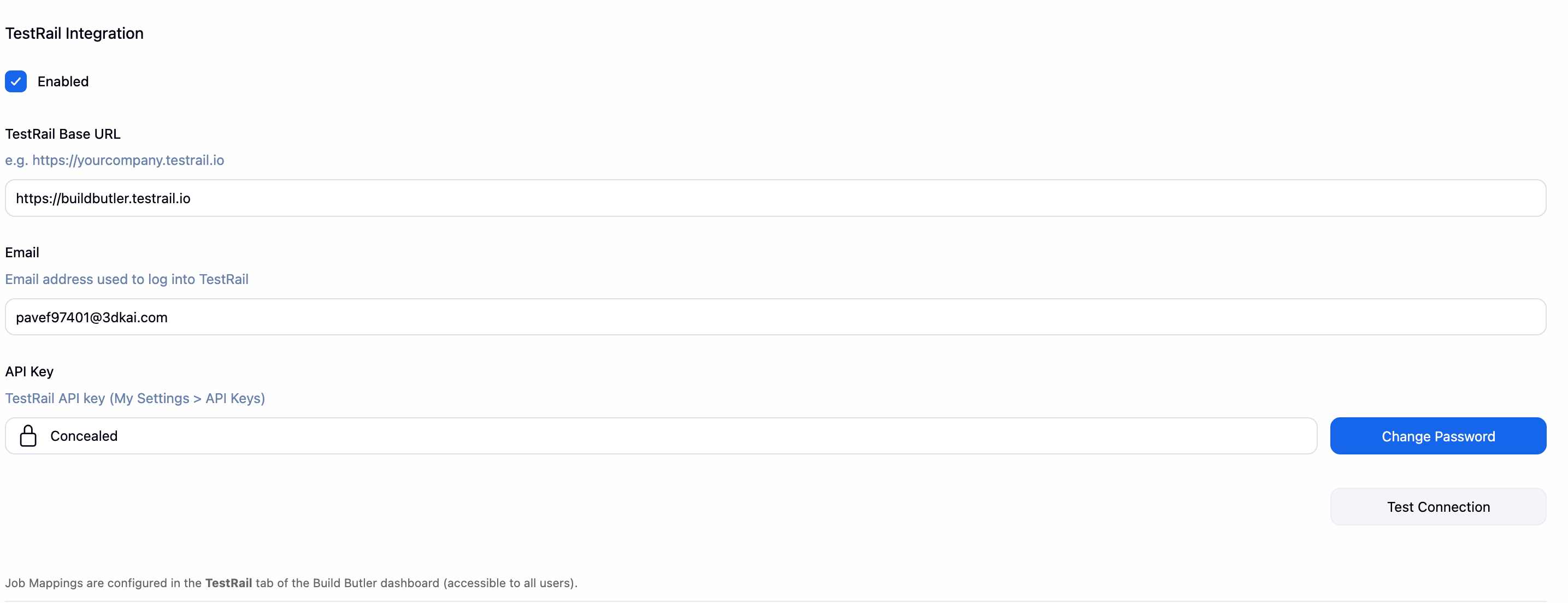
TestRail Integration
Push Jenkins test results to TestRail automatically after every build. Credentials and job mappings are configured globally here; per-job overrides are not required.
TestRail sync works even if no PostgreSQL database is configured. The database is only used to store the TestRail run URL for display in the dashboard.
- TestRail Base URL — e.g.
https://yourcompany.testrail.io - Email — your TestRail account email
- API Key — generate from TestRail under My Settings → API Keys
Click Test Connection to verify credentials before saving.
Job mappings are configured in the TestRail tab of the BuildButler dashboard. See Test Case Management → TestRail for the full configuration reference.
ALM Integration
Push Jenkins test results to HP ALM / Micro Focus ALM automatically after every build. Global credentials are configured here; per-job post-build steps are configured inside each Jenkins job.
ALM sync works even if no PostgreSQL database is configured. The database is only used to store the ALM test set URL for display in the dashboard.
- ALM Base URL — e.g.
https://alm.yourcompany.com/qcbin - Username — your ALM login username
- Password — your ALM login password
- ALM Field Mappings XML — Bumblebee-compatible XML for mapping custom ALM field names to human-readable labels (see below)
Click Test ALM Connection to verify credentials before saving.
ALM Field Mappings XML
Improvement from Bumblebee — you don't need to specify the internal ALM field name (alm_field). BuildButler can resolve it automatically from the label via ALM's customization API. Additionally, Test Connection will display which fields need to be configured and generate the XML snippet for you.
This field accepts the same field-mappings XML format used by Bumblebee. Paste your existing Bumblebee XML directly, or write one from scratch. It controls how the Custom Properties values in the post-build step (and customProperties in the JSON config) are translated to internal ALM field names.
| Element / Attribute | Required | Description |
|---|---|---|
mapping[label] | Yes | Human-readable name used in Custom Properties (e.g. Test User 1=automation). Case-insensitive. |
mapping[alm_field] | No | Internal ALM field name (e.g. TS_USER_01). If omitted, BuildButler queries ALM's customization API to resolve the field name from the label automatically. |
mapping[default_value] | No | Not applied by BuildButler; preserved for Bumblebee compatibility. |
url, domain, project | No | Wrapper elements parsed for Bumblebee compatibility but not used for routing — all mappings apply regardless of which project they are nested under. |
Job mappings and per-job post-build steps are configured outside global settings. See Test Case Management → ALM for the full configuration reference.
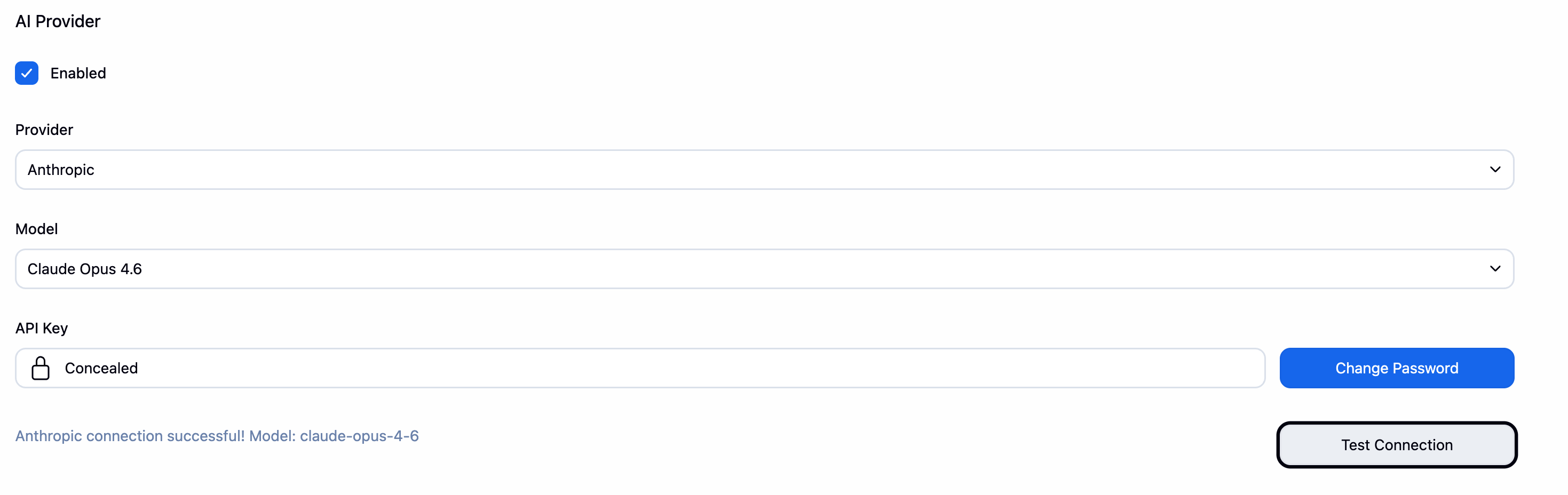
AI Provider
Configure an AI provider (Anthropic, OpenAI, or Google) to enable the Ask AI feature for natural language queries about your build data.
Build Configuration
Some BuildButler features are configured at the individual job level rather than in global settings. These are added as post-build steps inside each Jenkins job.
HP ALM Uploader
Add Build Butler HP ALM Uploader as a post-build step to any Jenkins job that should push results to ALM. This step runs after the build and uploads test results directly to ALM using the credentials configured in Manage Jenkins → BuildButler Local → ALM Integration.
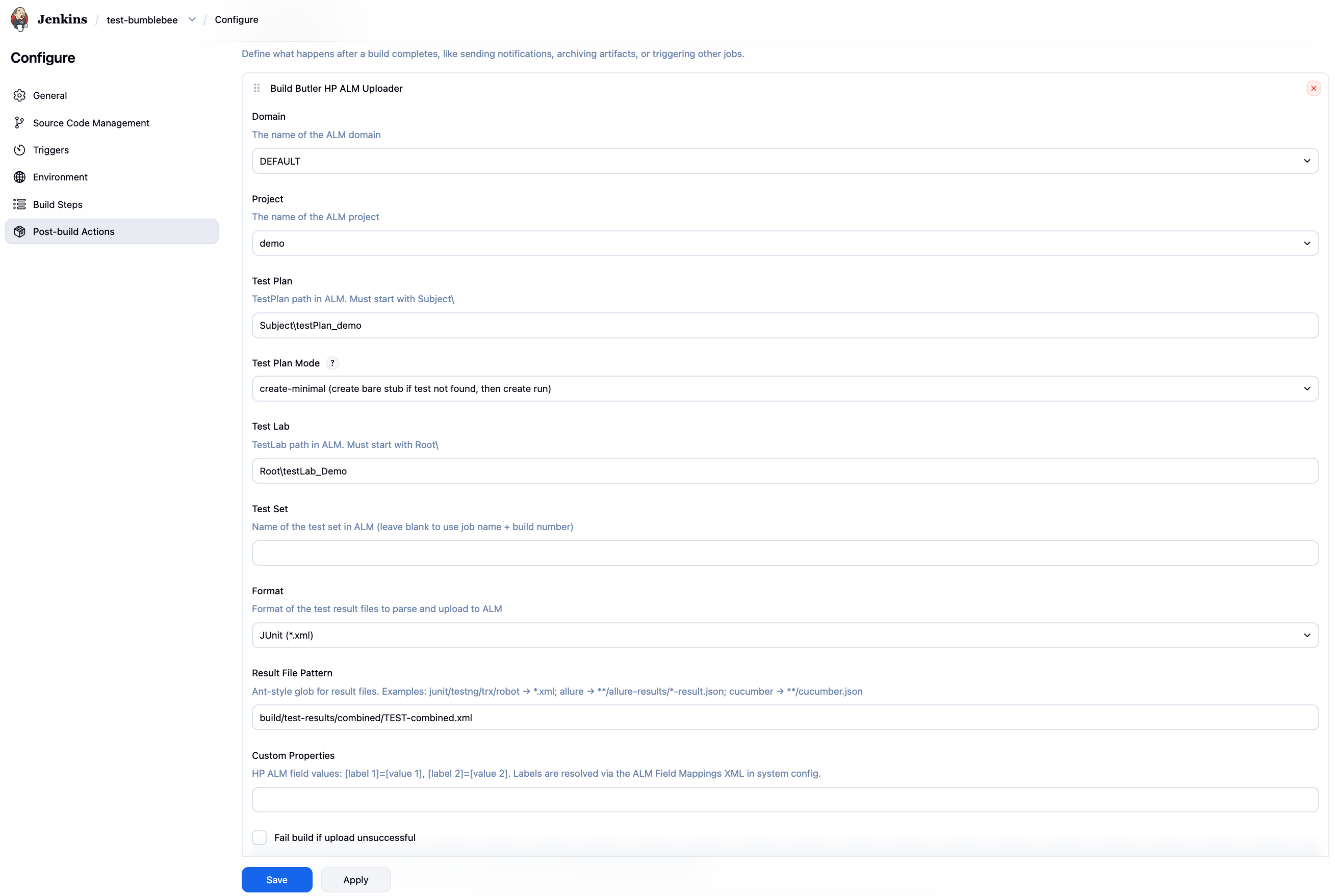
| Field | Description |
|---|---|
| Domain | ALM domain (e.g. DEFAULT) |
| Project | ALM project name |
| Test Plan | Test Plan folder path. Must start with Subject\ (e.g. Subject\Automated) |
| Test Plan Mode | find-only — never writes to Test Plan; tests not found are skipped. create-minimal — creates a bare stub when a test is not found and then creates the run. Existing tests are never modified in either mode. |
| Test Lab | Test Lab folder path. Must start with Root\. Supports {jobName}, {buildNumber}, {branch}. |
| Test Set | Test set name. Supports template variables. Leave blank to use {jobName} #{buildNumber}. |
| Format | Test result format: junit, testng, trx, allure, cucumber, robot |
| Result File Pattern | Ant-style glob for result files (e.g. **/target/surefire-reports/*.xml) |
| Custom Properties | Comma-separated label=value pairs applied to test entities. Labels are resolved via the ALM Field Mappings XML in global settings. |
| Fail build if upload unsuccessful | Mark the build as failed if the ALM upload fails or no tests are matched |
HP ALM Auto Defect Management
Defect management is configured as part of the HP ALM Uploader post-build step. Defects are created, reopened, or closed automatically based on test results.
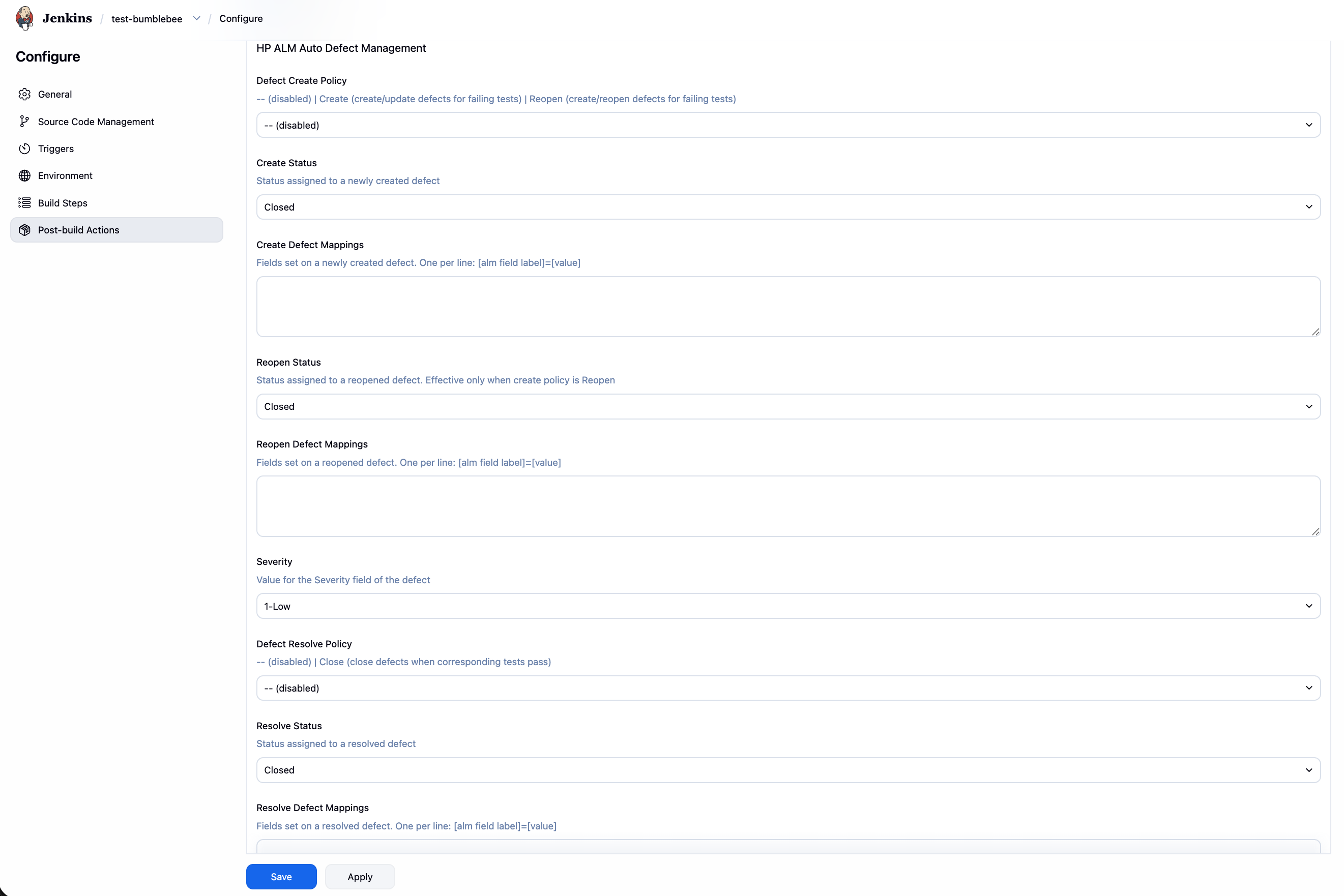
| Field | Description |
|---|---|
| Defect Create Policy | -- disabled · Create create or update an open defect for each failing test · Reopen create or reopen a defect for each failing test |
| Create Status | ALM status applied to a newly created defect (e.g. New) |
| Create Defect Mappings | Extra fields set on a newly created defect. One per line: label=value |
| Reopen Status | ALM status applied when reopening a defect |
| Reopen Defect Mappings | Extra fields set when reopening a defect. One per line: label=value |
| Severity | Value for the ALM BG_SEVERITY field (e.g. 2-Medium) |
| Defect Resolve Policy | -- disabled · Close close any open defect whose corresponding test now passes |
| Resolve Status | ALM status applied when closing a defect (e.g. Closed) |
| Resolve Defect Mappings | Extra fields set when resolving a defect. One per line: label=value |
App Configuration
Some configuration is done inside the BuildButler app view rather than in Jenkins global settings. This is intentional — it allows non-admin users to manage their own rules without needing access to Manage Jenkins.
Email Rules
Email notification rules (which jobs send alerts, to whom, and on what events) are created in the Email tab of the BuildButler dashboard. Any user can create rules for their own projects.
See Email Notifications for the full configuration reference.
TestRail Job Mappings
TestRail job mappings (which Jenkins jobs sync to which TestRail projects and test runs) are configured in the TestRail tab of the BuildButler dashboard.
See Test Case Management → TestRail for the full configuration reference.
ALM Job Mappings
For the Standalone ALM mode (pattern-based routing without per-job post-build steps), job mappings are configured in the ALM tab of the BuildButler dashboard.
See Test Case Management → ALM for the full configuration reference.
Data ingested
The plugin hooks into the Jenkins build lifecycle and collects:
| Data | When |
|---|---|
| Build result, status, duration | On build completion |
| Pipeline stage execution times | On pipeline completion |
| Test results (JUnit/TestNG/etc.) | On build completion |
| Agent status and availability | Periodically (every 60s) |
| Build console logs | On build completion |
Multiple Jenkins controllers
If you run multiple Jenkins controllers, each can be configured to write to the same PostgreSQL database. Install the plugin on each controller and configure it with a unique Server Label — each controller gets its own label so data can be filtered by source in the dashboard.
Network requirements
The plugin is fully self-contained — it writes build data directly to your own PostgreSQL database and handles everything locally. There is no dependency on api.buildbutler.dev or any BuildButler-hosted infrastructure.
Outbound connections are only made to the following destinations, depending on which features are enabled:
| Destination | Purpose |
|---|---|
us.i.posthog.com | Anonymous usage analytics |
hooks.slack.com | Slack webhook notifications |
api.openai.com | AI natural language queries |
api.anthropic.com | AI natural language queries |
generativelanguage.googleapis.com | AI natural language queries |
quickchart.io | Chart image generation for email templates |
| User-configured Jira URL | Jira integration |
| User-configured TestRail URL | TestRail integration |
| User-configured ALM URL | HP ALM integration |
license.buildbutler.dev | License validation |
Compatibility matrix
| Jenkins LTS | Released | Java Required | buildbutler-cloud | buildbutler-local |
|---|---|---|---|---|
| 2.387.x | Mar 2023 | Java 11 | ❌ too old | ❌ too old |
| 2.401.x | May 2023 | Java 11–17 | ❌ too old | ❌ too old |
| 2.414.x | Aug 2023 | Java 11–17 | ❌ too old | ❌ too old |
| 2.426.x | Nov 2023 | Java 11–17 | ❌ too old | ❌ too old |
| 2.440.3 | Feb 2024 | Java 17 | ✅ minimum | ✅ minimum |
| 2.452.x | May 2024 | Java 17 | ✅ | ✅ |
| 2.462.x | Aug 2024 | Java 17 | ✅ | ✅ |
| 2.479.x | Nov 2024 | Java 17 | ✅ | ✅ |
| 2.492.x | Feb 2025 | Java 17 | ✅ | ✅ |
Troubleshooting
| Symptom | Likely cause | Fix |
|---|---|---|
Connection refused | Wrong host/port | Verify Postgres is reachable from Jenkins |
Authentication failed | Wrong credentials | Check username and password |
Schema not created | Insufficient DB permissions | Grant CREATE privileges to the DB user |
| No data appearing | Plugin not enabled on job | Enable BuildButler in the job configuration |
Enable debug logging
To see detailed plugin logs in Jenkins:
- Go to Manage Jenkins → System Log → Add new log recorder
- Set Name to
io.jenkins.plugins.buildbutler - Under Loggers, click Add and set:
- Logger:
io.jenkins.plugins.buildbutler - Log level:
ALL
- Logger:
- Click Save
Logs will appear live in the log recorder view. This captures all plugin activity including database connections, build reporting, and any errors.
Set the log level back to a less verbose level (e.g. WARNING) once you're done debugging. Verbose logging can impact performance and may log sensitive values.